
Creating amazing animations in Source Filmmaker can be exciting, but getting your files to work properly often feels like solving a puzzle.
Many creators struggle with broken models, missing textures, and animation errors that can ruin hours of hard work.
This is where SFM Compile becomes your best friend.
Whether you’re a beginner just starting your animation journey or an experienced creator looking to streamline your workflow, understanding how to compile your assets correctly is essential for success.
SFM Compile helps transform your raw 3D models, textures, and animations into formats that Source Filmmaker can actually use.
Without proper compilation, your creative projects might crash, load incorrectly, or simply refuse to work at all.
The good news is that once you learn these techniques, you’ll save countless hours and avoid frustrating technical problems.
SFM Compile
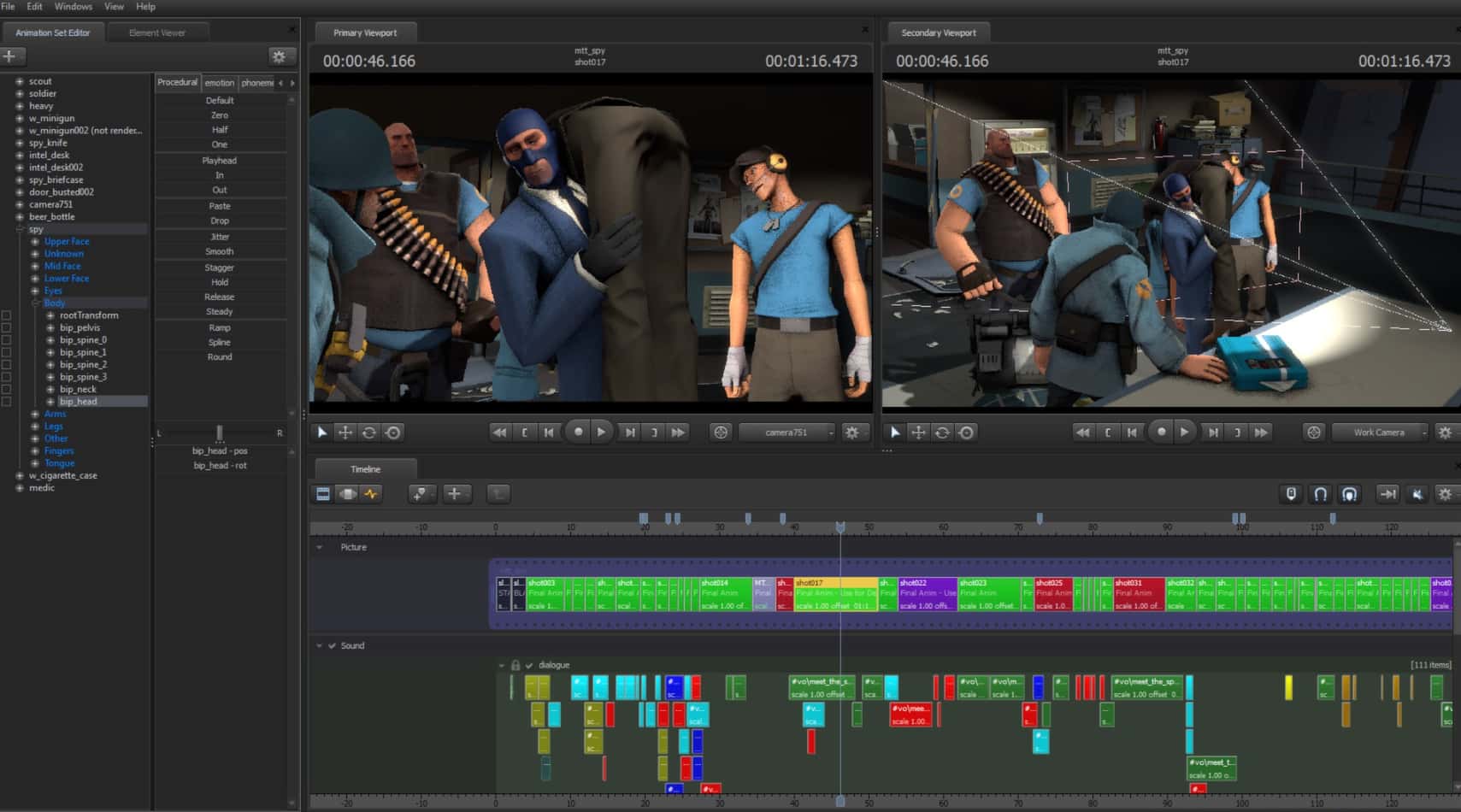
This guide will walk you through everything you need to know about compiling assets for Source Filmmaker.
We’ll cover the essential tools, step-by-step processes, and expert tips that will make your animation projects run smoothly.
By the end of this article in BulletinTech Media Blog, you’ll have the confidence to handle any compilation challenge and create professional-quality animations without technical headaches.
What is SFM Compile?
SFM Compile refers to the process of converting your 3D assets into specific file formats that Source Filmmaker can recognize and use.
Think of it like translating a foreign language into one your computer understands.
When you download or create 3D models, textures, and animations, they often come in formats like OBJ, FBX, or PNG.
While these formats work great in other software, Source Filmmaker has its own special requirements. The compilation process transforms these files into Source-compatible formats.
Why is Compilation Necessary?
Source Filmmaker was built using Valve’s Source engine, which has specific technical requirements. Here’s what happens during compilation:
| Original Format | Compiled Format | Purpose |
|---|---|---|
| OBJ, FBX, 3DS | MDL | 3D model files |
| PNG, JPG, TGA | VTF | Texture files |
| SMD, DMX | SMD | Animation data |
| VMF | BSP | Map files |
Without proper compilation, you might encounter these common problems:
- Missing textures – Models appear pink or checkered
- Broken animations – Characters don’t move correctly
- Loading errors – SFM crashes or refuses to load assets
- Performance issues – Slow rendering and frame drops
The Technical Side Made Simple
The compilation process involves several key components:
- Model Definition Files (MDL) contain all the information about how your 3D model should look and behave. These files include geometry data, material assignments, physics properties, and animation sequences.
- Valve Texture Format (VTF) files are optimized texture files that load faster and use less memory than standard image formats. They support various compression methods and can include multiple resolution levels for better performance.
- QC Scripts act like instruction manuals that tell the compiler how to build your model. They specify which textures to use, how animations should work, and what special properties the model should have.
Key Features of SFM Compile
Understanding the main features of asset compilation will help you choose the right approach for your projects. Each feature serves a specific purpose in creating smooth, professional animations.
Easy Model Compilation
Converting 3D models for SFM use becomes straightforward when you understand the process. The compilation system can handle models from various sources, including:
- Game assets from popular titles
- Custom models created in Blender, Maya, or 3ds Max
- Downloaded models from community sites
- Modified existing SFM models
Benefits of proper model compilation:
- Models load faster in SFM
- Animations work correctly
- Textures appear as intended
- Physics properties function properly
Smooth Texture Conversion
Texture compilation ensures your models look exactly as intended. The VTF format offers several advantages:
| Feature | Benefit |
|---|---|
| DXT Compression | Smaller file sizes |
| Mipmap Generation | Better performance at a distance |
| Alpha Channel Support | Transparency effects |
| Multiple Format Support | PNG, TGA, BMP compatibility |
Common texture issues solved by compilation:
- Purple and black checkers – Missing texture files
- Blurry textures – Incorrect compression settings
- Transparency problems – Alpha channel errors
- Performance drops – Unoptimized texture sizes
Reliable Animation Support
Animation compilation transforms movement data into SFM-readable sequences. This process handles:
- Character animations include walking, running, talking, and custom poses. The compiler ensures smooth transitions between different animation states.
- Facial animations for lip-syncing and expressions. Proper compilation maintains the timing and intensity of facial movements.
- Object animations such as moving props, vehicles, and environmental elements. These animations remain synchronized with other scene elements.
Organized File Management
Compilation tools help maintain clean, organized project structures:
- Automatic folder creation for models and materials
- Consistent naming conventions for easy asset location
- Backup generation to prevent file loss
- Version control for tracking changes
How to Use SFM Compile?
Learning to compile assets properly requires understanding each step of the process. This section will guide you through the complete workflow from start to finish.
Understanding File Preparation
Before starting compilation, organize your source files properly. Create a dedicated working folder with these subfolders:
├── models_src/
├── materials_src/
├── animations_src/
└── compiled_output/
Essential file types you’ll work with:
- SMD files – Model geometry and animation data
- QC files – Compilation instructions
- TGA/PNG files – Source textures
- VMT files – Material definitions
Setting Up Your Workspace
Create a clean, organized workspace to avoid common compilation errors:
- Step 1: Folder Structure Maintain consistent folder names and locations. This prevents path errors during compilation.
- Step 2: File Naming Use simple, descriptive names without spaces or special characters. Replace spaces with underscores.
- Step 3: Path Management Keep file paths short and avoid deep folder nesting. Long paths can cause compilation failures.
The QC Script Process
QC (QCompile) scripts are text files that contain instructions for building your model. Here’s what a basic QC script includes:
Model Information:
- Model name and location
- Texture folder paths
- Scale and position settings
Animation Sequences:
- Animation file references
- Frame rates and timing
- Loop settings and transitions
Physics Properties:
- Collision detection settings
- Mass and material properties
- Joint constraints and limits
Compilation Workflow
Follow this step-by-step process for successful compilation:
| Step | Action | Tools Used |
|---|---|---|
| 1 | Prepare source files | File explorer |
| 2 | Create QC script | Text editor |
| 3 | Compile model | Crowbar/StudioMDL |
| 4 | Convert textures | VTFEdit |
| 5 | Test in SFM | Source Filmmaker |
Quality check after compilation:
- Model loads without errors
- All textures display correctly
- Animations play smoothly
- No missing dependencies
Download and Install the Required Tools
Getting the right tools is essential for successful asset compilation. This section covers everything you need to download and install.
Essential Compilation Tools
- Crowbar – The primary tool for model compilation and decompilation. This free software handles MDL file creation and can also extract models from games for modification.
- VTFEdit – Converts standard image formats into Valve’s VTF texture format. It supports batch processing and various compression options.
- Notepad++ – A text editor perfect for creating and editing QC scripts. It offers syntax highlighting and error detection.
- GCFScape – Extracts files from Valve’s game archives. Useful for accessing existing models and textures as references.
Tool Download Sources
| Tool | Official Source | Alternative |
|---|---|---|
| Crowbar | NemesisModding | Steam Community |
| VTFEdit | NemesisModding | ModDB |
| Notepad++ | Official Website | Microsoft Store |
| GCFScape | NemesisModding | GitHub |
Installation Best Practices
- Create a tools folder on your desktop or C: drive to keep all compilation tools organized. This makes them easy to find and prevents accidental deletion.
- Run as administrator during installation to ensure proper file permissions. Some tools need system-level access to function correctly.
- Add to PATH variable (optional) for advanced users who want command-line access to compilation tools.
Tool Configuration
After installation, configure each tool for optimal performance:
Crowbar Settings:
- Set default SFM directory
- Configure output folders
- Enable verbose logging for troubleshooting
VTFEdit Options:
- Choose default compression settings
- Set up batch processing preferences
- Configure quality settings for different texture types
Verification Steps:
- Test each tool with sample files
- Check for missing dependencies
- Verify proper folder permissions
- Create a test compilation to ensure everything works
Performance Tips for Large SFM Projects
Working with complex animations and multiple assets can slow down your workflow significantly. These optimization techniques will keep your projects running smoothly.
Model Optimization Strategies
Polygon reduction is crucial for maintaining good performance. High-poly models that look great in other software can cause SFM to struggle.
Recommended polygon counts:
| Model Type | Polygon Count | Performance Impact |
|---|---|---|
| Main Characters | 8,000-15,000 | Medium |
| Background Characters | 3,000-8,000 | Low |
| Props | 1,000-5,000 | Low |
| Vehicles | 10,000-20,000 | Medium-High |
Texture optimization involves balancing quality with file size:
- Main character textures: 1024×1024 or 2048×2048
- Background elements: 512×512 or 1024×1024
- Small props: 256×256 or 512×512
Memory Management
SFM memory limitations can cause crashes with large projects. Follow these guidelines:
Asset loading strategy:
- Load only the necessary models for each scene
- Remove unused assets regularly
- Use proxy models for distant objects
- Implement level-of-detail (LOD) models when possible
Texture memory optimization:
- Use DXT compression for most textures
- Avoid uncompressed formats unless necessary
- Generate mipmaps for better performance
- Remove unused texture files from projects
Rendering Performance
Lighting optimization significantly impacts render times:
- Use fewer light sources when possible
- Avoid overlapping light volumes
- Implement light culling for complex scenes
- Use baked lighting for static elements
Effect and shader management:
- Limit particle effects in dense scenes
- Use simplified shaders for background elements
- Reduce transparency layers
- Optimize reflection and refraction effects
Project Organization for Performance
Scene management techniques:
- Break large animations into smaller scenes
- Use consistent asset libraries across projects
- Implement version control for large teams
- Create template scenes with optimized settings
Hardware considerations:
- RAM: Minimum 8GB, recommended 16GB+
- Storage: SSD for faster asset loading
- Graphics: Dedicated GPU with 4GB+ VRAM
- CPU: Multi-core processor for better compilation times
FAQs:
- Which Tools Are Commonly Used for Asset Compilation?
The most commonly used tools include Crowbar for model compilation and decompilation, VTFEdit for texture conversion, and Notepad++ for editing QC scripts. GCFScape is also useful for extracting assets from game files. These tools work together to handle the complete compilation workflow from source files to SFM-ready assets.
- What Are QC Files, and Why Are They Important?
QC files are text-based instruction files that tell the compiler how to build your model. They contain essential information, including model names, texture paths, animation sequences, physics properties, and hitbox definitions. Accurate QC files are crucial because they determine how your model will behave in SFM. Errors in QC files can cause compilation failures, missing textures, or broken animations.
- How Can I Fix the “Too Many Vertices” Error During Compilation?
This error occurs when your model exceeds the Source engine’s vertex limit (approximately 32,768 vertices per model). Solutions include:
- Reduce polygon count using 3D modeling software
- Split complex models into multiple parts
- Use decimation tools in Blender or Maya
- Optimize mesh topology to remove unnecessary vertices
- Create LOD models for different detail levels
- Why Do My Textures Appear Pink or Purple in SFM?
Pink/purple textures indicate missing or incorrectly compiled texture files. Common causes and solutions:
- Missing VTF files – Ensure textures are properly converted
- Incorrect file paths – Check VMT file references
- Wrong folder structure – Place textures in the correct materials folder
- Case sensitivity – Match exact capitalization in file names
- How Do I Optimize Compilation Times for Large Projects?
Faster compilation strategies:
- Use SSD storage for source files and output
- Compile in batches rather than individual files
- Close unnecessary programs during compilation
- Use multi-core compilation when available
- Cache compiled assets to avoid re-compilation
- Can I Use Assets from Other Games in SFM?
Yes, but with important considerations:
- Legal permissions – Respect copyright and licensing
- Format compatibility – May need conversion
- Performance optimization – Game assets might be too detailed
- Attribution requirements – Credit original creators when required
Conclusion:
Mastering SFM Compile techniques transforms your animation workflow from frustrating to efficient.
Understanding the compilation process helps you avoid common pitfalls like missing textures, broken animations, and performance issues that can derail your creative projects.
The key takeaways from this guide include the importance of proper tool setup, organized file management, and following best practices for model and texture optimization.
Whether you’re creating simple animations or complex cinematic sequences, these compilation skills form the foundation of professional-quality work.
Remember that practice makes perfect when working with compilation tools. Start with simple projects to build your confidence, then gradually tackle more complex assets as your skills improve.
The time invested in learning proper compilation techniques will save you countless hours of troubleshooting and allow you to focus on what matters most – creating amazing animations.
Keep experimenting and learning from the vibrant SFM community. Share your own discoveries, ask questions when you’re stuck, and contribute to the growing knowledge base that helps all creators succeed.
With these compilation skills in your toolkit, you’re ready to bring any creative vision to life in Source Filmmaker.
Ready to start compiling? Download the essential tools, set up your workspace, and begin transforming your creative ideas into polished animations. The world of professional SFM creation awaits your unique artistic vision.